Showing posts with label data. Show all posts

Saturday, June 16, 2012

Excel Bubble Sort - Arranging Many Cells in Many Columns


In a previous post, and to some extent in a later one, I worked on ways to sort Excel cells in which data started out in an irregular arrangement, like this:


My goal in that case was to get the data items arranged in the original (vertical) order in a single column, like this:


This time around, I had a somewhat different objective. It seemed likely to require me to continue past the outcome just shown, to return the data to their original columns, but without the empty spaces between them, like this:


The question for this post was, how would I do that?


As I reviewed the previous posts, it seemed that the key step was to use Excel's CELL function. In the example just shown, an adjacent table containing formulas like =CELL("address",A1) and =CELL("address",A2) would produce values like $A$1 and $A$2. I could make those formulas conditional. Then =IF(A3="","",CELL("address",A3)) would return a blank cell. One additional step: I could combine the cell's address and its contents, like this:


The formula for that was =IF(A1="","",CELL("address",A1)&"--"&A1).  Now I could set up a shadow table, matching the original one cell for cell, with the same number of rows and columns, and with each cell containing this kind of CELL formula.  

With that done, I could copy the parallel table to a word processor that would have the ability to remove line breaks.  (The find-and-replace symbol for a line break in Microsoft Word was usually ^p.)  The table I was working on had 100 columns and about 3,000 rows.  Each column had just 30 actual data items, so there were a total of exactly 3,000 (not 300,000) actual data items in that table; all the other cells were blank.  Word 2003 was not able to accommodate this table initially, so I pasted it into Notepad++ and saved it as a text file, and then opened that in Word.  After a series of find-and-replace operations (replacing double tabs (i.e., ^t^t) and so forth), I wound up with a single column of entries, 53 pages long.

I pasted that list back into a different Excel table, temporarily, for further operations.  I parsed the entries into separate columns, using FIND to divide each item into its address and its contents.  In the first cell shown in the example above, the address was $A$1 and the contents were 3.  Now I had the 30 items that had originally been in column A, the 30 items that had been in column B, and so forth, without any of those blank cells.  This resulting set of 3,000 items was  all still just in one long column, but I could sort them in column order; I could take another few steps and sort them in row order; or I could sort them by increasing data item value.

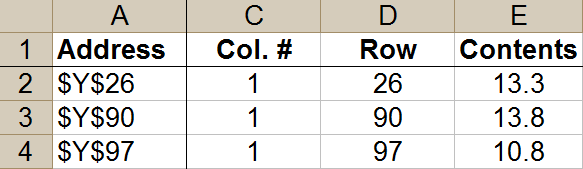
So at that point, I had achieved approximately what I had tried to do in at least one of the preceding posts.  Now there was the additional step of getting the 30 items pertaining to column A back into column A, leaving me with a table 100 columns wide but only 30 (not 3,000) rows deep.  To do this, I did go ahead and isolate out the column and row information into separate columns.  It was awkward to put the Excel column letters into proper order -- getting AA after Y, and so forth -- so I set up another column with numbers as substitute column indicators.  To do that, I did a unique data filter to get just a single representative from each column (e.g., AA, AB, ...), and then did a VLOOKUP to the appropriate number in a table built from that unique filter (e.g., Y = 1, Z = 2, AA = 3 ...).  This gave me a table which, after sorting, began like this:


I further modified this table by adding a Row # column after the existing Row column.  For this project, I didn't care what row the item came from in the original spreadsheet; I just cared that it was sorted in proper row order and that it would appear somewhere within rows 1-30 of my new table.  So the numbers in this new Row # column just ran from 1 to 30, matching the 30 items from a given column in the original spreadsheet (e.g., Y), and then they started over again at 1 and ran up to 30 for the next original column (e.g., Z), and so forth).  This was easy enough to arrange:  after setting up the first set of 1 to 30, the cells in all following rows could just refer to the value appearing 30 rows up.  So now I had set of 1, 2, 3 ... 30, appearing over and over again, all the way down my new Row # column.  I added a new NAddress column to express the combination of row and column: 


With that in place, I could do a lookup to complete the job.  This called for two tables.  The top left corners of those two tables looked like this:


Note the formulas shown for the top left data cell in each of these two tables.  The first table produced the thing that I would be looking for in my VLOOKUP; the second was the final data table.

I soon discovered that I should have included a VALUE formula in that final table's calculations; the resulting data were behaving like strings, not numbers, so I did have to do that additional transformation.  Otherwise, though, the data checked out OK, so this task was done.

Saturday, March 3, 2012

Mitigating a Data Verification Nightmare: Thoughts on Removing Duplicate Files

I had gotten myself into a data nightmare, with a bunch of files that appeared partly duplicative of one another.  I wanted to get rid of the duplicates.  This appeared likely to be a long struggle.  This post is one battle in that war.

For starters, I used DoubleKiller (I had the pro version, but the freeware one would have helped too) to pluck the low-hanging fruit -- to delete, that is, the verifiably exact duplicates.  But now there were files with almost identical names (e.g., Longfilename and LongfilenameA), files with identical names but different extensions (e.g., was Filename.pdf simply a PDF version of Filename.doc?), filenames with slight differences (e.g., was 2010-09-10 Résumé an essentially identical duplicate of 2010-09-10 Resume if their times were identical but their sizes were different?), and so forth.

It was easy enough to just guess at it and delete the ones that looked like they might be duplicates.  In many cases, that would have been fine; it wouldn't have made any real-world difference.  Obviously, though, this would not be not a good data management solution.  More like data abdication.  Second-best, I could identify likely duplicates and put them in a ZIP file, out of the way.  One problem with ZIP files, I had found, was that the reason for zipping them could fade from recollection, over a period of years; and then, one bright day, someone might decide to see what was in there, and the monster would live again.

One general underlying purpose was to have files that would actually be useful.  I thought that the processes of gradually absorbing useful files and eliminating unnecessary ones might be aided if I could sort them by topic.  Here, again, there were some obvious ways of quickly taking care of large numbers of files, such as those that were already sorted into folders with meaningful names.  But that left quite a few that were not usefully categorized.

In some cases, I could categorize files just from the information in their names.  But I hated to spend the time to do it manually.  I tried to sort them into categories by identifying key multiword phrases they contained.  That problem became complicated by variations in punctuation and other textual vagaries.  Therefore, I started over, this time beginning with an effort to clean up punctuation and other aspects of the text.

While that cleanup attempt was underway, I also looked for ways to reduce the number of filenames being sorted.  This brought me back to a focus on identifying duplicates.  It seemed, belatedly, that it would have been useful to have named all files according to a consistent rubric.  I took a look at that in a separate post.  That got me to a point where I was able to name many of the files in a certain standard way.  So, for example, an email would be named using a Date-From-To-Subject format.

Along the way, certain realizations forced themselves into my consciousness.  One was that, as a general rule, if it looks like a mess, it is probably a mess in ways that you haven't even imagined.  A corollary is that whatever you do, you will have to do over again, once you have discovered additional unforeseen ways in which the data are intertwined.  I did find that doing it wrong, several times over, was a good way to become familiarized with possible starting points.  Having a good backup was essential.  Being able to reconstruct steps, by saving relevant documents in generational steps, was a real plus.

There was also the problem of deciding whether to nibble around the edges or make a decisive stroke to divide major problem areas from one another.  The quandary here was that the decisive stroke would likely go astray if it was not informed by prior familiarity with the actual fault lines shooting through the data.  In the worst case, you would not only add to the confusion, but would divide things in exactly the wrong direction, so that the procedures taken with Group A would have to be repeated with Group B -- except that, inevitably, they could not be repeated *exactly* with Group B, because the two groups would differ in some subtle but significant way.  But nibbling around the edges could turn relatively simple aspects of the project into enormously tedious exercises in repetition, as exceedingly minor pieces of the puzzle were interminably quasi-resolved.

I made these notes during a particularly dark moment in the process.  I am pleased to report that, later on, when I returned to these notes to wrap them up and post them, I had turned to other projects, and was thus making good progress toward resolving the data verification nightmare by simply ignoring it until it (or I) went away.

Sunday, May 8, 2011

Data Nightmare: Reconciling Two Hard Drives

I was using Windows 7.  I had an old hard drive with files on it.  I wanted to see whether its files also existed on a newer drive.  My concern was that some of the old files might not have made it in good condition to the new drive.  This post describes the somewhat haphazard steps I took in this project. 

This is an incomplete account.  Ultimately, I was able to proceed only partway, with steps like those described here.  These steps got rid of half of the old files; I was able to see, fairly quickly, that at least half of them were duplicative or superseded.  When I closed this post, I was still not sure how I would be able to decide what to make of the other half of those files, other than through a long, manual file comparison process.
One first step, I thought, might have been to keep a complete directory listing from the old drive.  There were some scenarios where that might have been useful, and it was easy to make.  There were freeware utilities that would do it.  I would have just used the DIR command.  The commands I would have used would have been something like this:

F:
cd \
DIR *.* /s > D:\F-LIST.TXT
where F was the old drive, "cd \" started me in the root of F, and DIR put the names of all files, including those in subdirectories, in a file called D:\F-LIST.TXT.

Anyway, I decided to reduce the size of the problem by eliminating files on F that seemed very likely to have made a successful transition to the new drive (drive E).  Ideally, I would have made a backup copy of F before doing this, just in case some of my steps erred.

To delete those files that had successfully transitioned from F to E, I used DoubleKiller, though there were other duplicate remover programs that would have done the job too.  The criteria I used at this point were to check both the file sizes and the CRC32 checksums.  (Not all duplicate remover programs had these options, but some others did have something similar.)  The concept here was that a file's size could be the same and yet its contents could have changed, so it would pass a size-only test; and it was conceivable that two very different files could have the same CRC32 checksums; but it was virtually certain that if both the size and the CRC32 checksum were identical, they were in fact identical files, in which case one could safely be deleted.  I searched drive E for duplicates within itself, and resolved all of those.  Then I did likewise on F.  With that done, I could now check on both E and F.  DoubleKiller would display the duplicates in pairs, with E coming first and F coming second, so I could then do a bulk check-and-delete process (after some additional eyeballing) to remove the duplicates from F that had almost certainly made it to E successfully.

While doing all that, I noticed that a lot of files had changed format.  They had been .doc or .txt files, but I had converted them to .pdf.  This process would result in a file that had a different size, checksum, and filename.  But experience with the newer files, supplemented now by some random checking of these .pdfs, convinced me that most if not all with the new (*.pdf) filenames did reflect the same content.  So I could also delete the old .doc and .txt (and other extension) files on the old F drive whose content appeared to have made the transition to .pdf on the new E drive.  Space and time permitting, I could have played with that question some more and probably improved the accuracy of this comparison.

I could delete the old files (with .txt, .doc, etc. extensions) in favor of the new PDFs, that is, if I could figure out which ones had been so converted.  Consider these two filenames:
Letter to John Doe Containing Information.doc
Letter to John Doe Containing Information.pdf
If they were in the same folder, I could just sort them by file type in Windows Explorer, select the ones of the old type (.doc, in this example), then sort by name, and eyeball to make sure I had alternating selected and unselected files.  The problem in my case was that some of these, after being converted to .pdf, had also been moved to other folders.

To address that, I knew of two solutions.  One was the easy solution.  This apparently involved using Beyond Compare, or something like it, in its Professional version, and figuring out how to ignore filetypes so that I would have a straight-across comparison on two columns.  I had the Standard version, so I didn't have that option and, at this point, didn't even know that option existed.  What I was seeing in my Standard version of Beyond Compare was a more alternating layout that, when other files were added to the mix, could be hard to decipher, especially when dealing with large numbers of files that I did not care to scrutinize one-by-one.

As I say, that was the easy solution, so of course the solution I took was, instead, to produce a list of files on drive F, using the DIR command (above), and compare it against a list of files on drive E.  Since there were more than 65,000 files altogether, I could not simply copy these resulting E-LIST.TXT and F-LIST.TXT files into Microsoft Excel; its maximum was about 65,000 rows.  I discovered that OpenOffice.org (OOo) Calc had a similar limit, but a variant version of OOo Calc had a maximum of one million rows.  This version, called Go-OO, was delighted to accept my long E-LIST.TXT and F-LIST.TXT file listings, and it went right to work on them, crashing every couple of minutes.  After spending hours paring down the files to a somewhat smaller size, and converting formulas to simple text and numeric data (using Edit-Copy, Edit-Paste Special) as soon as I didn't need the formulas anymore, I was able to reduce the crashing.  By using text analysis functions (especially FIND and MID) within Go-OO, I was able to extract the filenames without extensions.  Now the problem was just getting Go-OO to copy and paste the lookup formula that I was using to search for the F filenames without extensions against the derived list of E filenames without extensions.  Go-OO was unwilling to copy and paste those formulas en masse; the very idea would cause it to freeze in fear.  Since I did not want to paste the formula manually down tens of thousands of rows, a few at a time, I wound up using AutoHotKey to automate the copying of those formulas.  AutoHotKey was useful if somewhat childlike.  I found, for instance, that if I absentmindedly switched the focus on that computer away from the copying process underway in Go-OO, AutoHotKey would blithely continue copying and pasting things into whatever random windows happened to be opened.  Fortunately, there were no delete commands in my AutoHotKey script, else it would have been an unpleasant morning.  Sometimes AutoHotKey would also decide to just start working away in some other part of the spreadsheet.  Should anyone care, the AutoHotKey macro that I prepared for this project went like this:
!x::

; Copies a cell in OOo Calc to the next one down
Send ^c{down}{Enter}{down}{up}
At this point, I wrote up these additional notes, which did not actually turn out to describe what happened next, but which may be useful for someone else who shares my indulgence in fantasy.  First, I said, "When the lookups were done and I was finally working with fewer than 65,000 files, I saved in an Excel-compatible format and resumed work there."  I also wrote, "Eventually, I noticed that some files that had previously been .jpgs were probably combined into .pdfs as well.  Since .jpg format did not accommodate multipage documents, what we had there was a bunch of files named file01.jpg, file02.jpg, file03.jpg, and so forth, and the resulting file.pdf.  So here I had to modify the spreadsheet formula somewhat to seek out those filenames ending in two or three digits, and search for equivalents along those lines."

Those additional notes did not turn into anything real because what happened instead was that Go-OO -- whether of its own volition, or as persuaded by AutoHotKey, I cannot say -- decided not to reopen the file anymore, nor any of its last several versions comprising hours of work on the spreadsheet.  After trying various angles on two different machines, I gave up and waited for news from the Beyond Compare people on what it would cost to upgrade from Standard to Pro version, so maybe they would provide a workable solution to this project.  It turned out that a previous version of Beyond Compare had a way of comparing that might be useful, so I looked into that but, unfortunately, I would have needed some of the features of the latest version to make it work.  Another Beyond Compare approach involved their Alignment Overrides option.  They had a way to experiment with this feature, which was in the Pro version.  This did not really help me much.

I wound up using Beyond Compare 3, using folder-by-folder comparisons and also comparisons regardless of folder.  I simply deleted, from the old drive, the files that were matched on the new one.  This left a bunch of empty folders.  I had always gotten rid of those using a batch file in a sequence of several steps, but I had never memorized exactly what those steps were, and what I was finding now wasn't working right.  I heard that Glary Utilities had a tool for this purpose, so I installed that freeware and went into its Modules tab > Files & Folders > Empty Folders Finder.  It found a boatload of them. Once that was out of the way, I ran the DOS command "DIR *.* /s > D:\DIRLIST.TXT."  This created DIRLIST.TXT, a list of the files left on the drive.  I imported that list into Excel -- it was now short enough to fit within the 65,000-record limit -- and sliced and diced it.  I started by using commands like MID and FIND to extract the file extensions.  Example:  =MID(F1,1,LEN(F1)-LEN(K1)), with F1 containing the imported filename and K1 containing the extension (e.g., .html), would give me the filename without extension.  (To get the extension, I did several columns of =FIND(".",F1,G1+1), where G1 contained the rightmost dot yet discovered in the filename, sorting and identifying and then excluding from further sorts.  Then I used ="DIR /S "&CHAR(34)&I2&"*.*"&CHAR(34)&" >> D:\FOUND_IT.TXT" to create a cell containing a DOS command that would look like this:  DIR /S "Letter to Joe*.*" >> D:\FOUND_IT.TXT.  This command would search for that filename and export its results to FOUND_IT.TXT.  Excel generated similar commands for each of the files I was looking for.  I copied and pasted the lot of them into a text file called Finder.bat.  At the start of Finder.bat, I added two lines:
D:
CD \
to make sure that the search would occur on the proper drive and would begin from its root.  I ran this overnight, and awoke to find that FOUND_IT.TXT had vanished.  No idea why.  So I ran it again, and this time simulataneously ran another batch file:
:: WAITER.BAT
:: Copies FOUND_IT.TXT to another folder
@echo off

:REPEET
copy FOUND_IT.TXT D:\Current
TIMEOUT /T 30 /NOBREAK
goto REPEET
Ultimately, this gave me a complete FOUND_IT.TXT, with lots of hits and misses.  I opened it in Word.  It was a 9,193-page document.  I did a bunch of search and replaces to get rid of useless lines, using search and replace terms like ^p (for line breaks) and ^t (for tabs).  At this point, I did not continue with the process of examining drive contents and logging my steps, deciding instead to defer this process until the next point when I would want to devote some time to this enterprise.

Saturday, January 22, 2011

Windows 7: RAID or Mirror Across Computers?

Where to put the data ... hmm.  I had a home network with two computers running Windows 7.  If the data I needed to work with was on one computer and it went down or had one of those frequent Microsoft maintenance or service interruption needs, I couldn't get to it from the other computer.  But if I put the data on a server, then (a) I had to buy and maintain the server, cables, routers, etc., (b) I had slower access times, (c) the data would then be unavailable to *both* machines (unless I wanted to swap out one or more hard drives) if the server went down, and (d) I had found that, if I accidentally corrupted or deleted the wrong file, a server might not be willing to undelete it.  Not a big deal, assuming you had good backup, but there were painful exceptions.

So it occurred to me:  can you put the data on one computer, so that it can function as a standalone, and also put the data on the other computer, so that it is a standalone too, but then have a constant RAID or mirror arrangement between the computers, so that whatever you do with the data on one computer is immediately duplicated on the other computer?  That way, you've got local speed, no server, and redundancy during downtime on either machine.  Basically, two-way mirroring:  when a file is modified, it checks the other computer, and the two of them figure out which version is newer, and it overwrites the older version on the other machine as well.  All you need is a router, if that.

I figured possibly everybody else already knew the answer to this.  But since I didn't, I started with a search.  Only six hits.  It looked like the concept of "RAID between computers" was a nonstarter.  Alright, a different search.  Wow, "mirror between computers" produced 13 hits.  But, OK, not to complain, it seemed most of those hits were for TreeNetCopy.  Take it out of the equation, and the search produced only five hits.  So TreeNetCopy seemed to provide the path forward.  But it didn't look like CNET, PCMag, or other big-name sites had reviewed it.  I went to the product's home website and found out why:  it was for systems using Windows NT or Windows 2000.

Apparently mirror and RAID were not the concepts I wanted.  How about incremental backup?  You couldn't have it running constantly; it would have to finish one scan of the system's files before it could start on the next one.  So maybe you'd set it to run every 15 or 30 minutes, or however a scan would take to finish, across the network connection.  This wouldn't be nearly as good as software that would detect and propagate changes as soon as they were made, but I wasn't seeing how to find anything like that.  With a 15- or 30-minute delay, you couldn't have someone being able to open the file on computer B as soon as someone else updated it on computer A, unless possibly if you had a script that would somehow be able to run the incremental backup manually for a given folder by just maybe choosing a right-click context menu option.

Alright, a different approach.  I had been using Beyond Compare, a file comparison tool.  It still looked like one of the more capable file comparison tools, so how about using it?  As I was thinking about that possibility, I realized that I didn't like the idea of having to do a right-click or other manual update.  The computer could crash before I got around to that, and then I wouldn't have the current data in the parallel folder on the other computer, and therefore really couldn't just keep right on working where I left off.  I had only used Beyond Compare as a manual comparison tool, where I would start it up and it would run for a while and compare directories and then show me what needed to be mirrored to my backup drive, and then I would click the buttons necessary to do that.  I knew it was possible to write scripts to automate some of this, but it seemed unlikely that scripts would help Beyond Compare remain up-to-the-minute on all of the file changes made on the system.  Most likely, I could set up scripts to run in some frequently used folders, and maybe even to automate the mirroring of those folders, but other folders would be left out in the cold.  Possibly I could have multiple scripts doing comparisons of more- and less-frequently used folders on different schedules, so as to increase the likelihood that most folders would be mirrored relatively often.  But with enough scripts running simultaneous file comparisons, I'd start to take a performance hit.

Lacking a better option, I did a search to learn more about Beyond Compare scripts.  The search came up with a number of interesting concepts, right there among the top ten hits.  One was the concept of automated synchronization.  Duh!  Of course.  Synchronization was the Windows term for what I wanted.  So I did a search for that, dropping Beyond Compare for the moment.  But the only thing that came of it was the discovery of Super Flexible File Synchronizer, which cost $60 for a two-year license (unless, for some bizarre reason, I would think that I could do without the pro version's ability to copy ZIP files!).  It did look like it might have some advantages over Beyond Compare, such as the ability to detect that I had moved a folder, so that it could just repeat the move rather than delete the folder from one location and create it in another (which might involve a lot of copying, if it was a large folder).  It had very good ratings on CNET.  I could download and try it out free for 30 days.  But it was ultimately still a backup program, running on a schedule, not a mirroring program, so I was still basically working with the same scenario:  design a set of backup scripts, profiles, or whatever, and set them to run at different frequencies, backing up what I would consider the most heavily used folders most frequently.

TopTenReviews ranked Super Flexible File Synchronizer eighth in its list of sync programs.  Their comparison page had a number of relevant criteria, including the ability to do bidirectional sync, to mirror files, and to operate across a network.  It actually looked like their number two program, GoodSync ($19.95), had better features for my purposes than their number one choice, Syncables 360 ($39.95).  Their review of GoodSync made it sound good indeed.  They said it couldn't sync or merge Microsoft Outlook files, which was OK because I was using Thunderbird.  (Later, I encountered a review by a user who said s/he was using it for this purpose, so I assumed they had updated the program.)  They said that working over networks could be complicated.  I wasn't sure if they meant that as a generic remark that would be relevant to all kinds of work over networks.  They seemed to rank it number two rather than one because it "lacks some of the advanced features professional users expect."  CNET's review likewise ranked it number two, but in the category of "file management."  I wasn't sure what they considered the number one program; their webpage didn't indicate which criterion they used for that ranking.  But GoodSync was the most frequently downloaded program during the prior week.  GoodSync's awards webpage mostly listed awards and positive reviews that were at least a couple of years old.  So apparently it had been created and was now coasting.  I did a search among its many reviews on CNET, looking for more info about using it on a network.  Unfortunately, CNET's links to specific reviews weren't working for me at that point, so I wasn't able to get details, but what I was able to read from the summary results was positive with the exception of one person for whom GoodSync did not work well.

There were hardware options.  SyncSharp offered a device that would synchronize via USB.  It sounded similar to The Tornado and to the Windows 7 Easy Transfer option.  I didn't want an additional device, and since ethernet was faster and was already in place, I didn't want to use USB.  For purposes of speed and also capacity, not to mention reducing dependency on external data sources, I was obviously not going to be interested in a cloud (i.e., web-based) solution, even if I had found one that offered constant, continuous, real-time synchronization.

It turned out that CNET had another category, for "data transfer & sync software."  As with some other CNET searches, I looked at the top 30 both in terms of downloads last week and user ratings.  Setting aside those that were for special purposes (e.g., Blackberry, Outlook), and focusing on those that were for Windows 7, I found that only two were free:  CopyTo Synchronizer, which had only two votes and which I therefore deemed insufficiently tested, and Microsoft Live Mesh, which had only one vote but which I was willing to assume was better developed.  The nonfree alternatives that came up in this search included BeyondSync, ViceVersa Pro, Easy Computer Sync, and Syncables 360 Premium.  I reduced this set to Live Mesh, Beyond Sync, and ViceVersa.  A search for further information on Live Mesh suggested it was web-based, more like DropBox, leaving me to focus on the other two.  A search led back to a TopTenReviews comparison -- it may have been the same one as before, but a couple of weeks had passed by thie time -- naming GoodSync (above) as No. 2, ViceVersa as No. 5, and BeyondSync as No. 10.  Of the ten, the ones offering bidirectional sync, network synchronizing, and Windows 7 support were these three plus Syncables 360, SugarSync, Laplink, and Super Flexible.  Most of the same names also appeared in a CEOWorld review.  I eliminated SugarSync as another cloud solution.  The TopTen review for Beyond Sync made it sound unappealing.  A dotTech review echoed that. 

I ran a search looking for comparisons of Syncables against the others that also sounded good for bidirectional synchronization.  A couple of reviews alerted me to the feature, evidently present in GoodSync but not all others, of being able to see which changes would overwrite.  I began to get a sense that Syncables was more of a glossy product, designed for people who wanted simple and trouble-free synchronization without necessarily having an option to scrutinize every step of what was happening.  Having been burned by the occasional backup program that would not save (and would also not tell me that it was not saving) files of a certain kind, or nested too deep, or had an umlauted character in their filenames, or were otherwise secretly exempt from what I thought was happening, I had become more inclined to use transparent software.  At least until I gained a lot of trust and experience with a program, I wanted to see what it was doing.  So this feature of GoodSync appealed to me.  I noticed, also, that a review described Liuxz Sync as being "of most use to users that need to carryout real time synchronizations over a network or between hard drives."  As I continued to look at other opinions, ViceVersa still sounded relatively good too.

On this basis, I decided to start with GoodSync, as described in a separate post.  After some days of using it, and comparing its results against an external backup drive via manual comparisons using Beyond Compare (as described in more detail in that other post), I concluded that GoodSync was a good product for this purpose.  I set its sync rules so as to check most frequently those partitions in which I was most likely to make changes.  For practical purposes, I could change files on one computer and I would see those changes on the other computer when I went looking for them.

In short, I wound up using GoodSync to synchronize files on two computers on a home network.  The files were generally available on the other computer within minutes.  I did this without using a server.  That is, the files were available locally on each computer, so that I could keep right on working if the other one went down.  I arranged backup via external drive, and I occasionally checked that external drive against the internal drive manually using Beyond Compare.  I had better performance than on a network, and was not very vulnerable to network problems; presumably I could have set up the same arrangement via crossover cable, without even having a router.  This really felt like a solution that I had been seeking for years.

Friday, May 7, 2010

Notes from "Counting Working-Age People with Disabilities"

Book Discussed

Houtenville, A. J., Stapleton, D. C., Weathers, R. R. II, & Burkhauser, R. V. (Eds.). (2009). Counting working-age people with disabilities: What current data tell us and options for improvement.  Kalamazoo:  W. E. Upjohn Institute for Employment Research.

*  *  *  *  *

I read several chapters of this inexpensive book.  This post presents my notes on (as distinct from a review of) those chapters.

*  *  *  *  *
Preface

I had previously noticed that Cornell had a website with a lot of information on disability statistics.  This preface explains why.  The U.S. Department of Education’s National Institute for Disability and Rehabilitation Research (NIDRR) awarded Cornell a grant for a Rehabilitation, Research, and Training Center (RRTC) (which Cornell called StatsRRTC).This book grew out of a conference on disability statistics research in Washington, DC in October 2006.

*  *  *  *  *
Chapter 1

Stapleton, D. C., Houtenville, A. J., Weathers, R. R. II, & Burkhauser, R. V. (2009). Purpose, overview, and key conclusions.  In A. J. Houtenville, D. C. Stapleton, R. R. Weathers, II, & R. V. Burkhauser (Eds.), Counting working-age people with disabilities: What current data tell us and options for improvement (pp. 1-26).  Kalamazoo:  W. E. Upjohn Institute for Employment Research.

The title's focus on working-age people follows from an earlier article by Weathers in which he identified the 18-64 age group as being the traditional group of working age, and further pared away the 18-24 group as being in a school-to-work transition stage, and the 62-64 group as being in a work-to-retirement transition stage.  As in that earlier article, this chapter (p. 6) focuses on the group of people aged 25-61.

The authors identify (p. 9) a number of reasons why state-level data on the prevalence of people with disabilities (PWDs) are important -- why, that is, federal data do not capture important local variations.  Some of the reasons include different physical, cultural, economic, and policy environments.  They refer (p. 13) to the National Disability Data System (NDDS), which does not exist in any formal sense (although it should) but can be understood, at present, as the aggregate of a number of disparate data collection and analysis efforts on federal and other levels.  For instance, data from administrative records suggest that only about half of the total number of PWDs estimated by the American Community Survey (ACS) are actually enrolled in federal programs that provide assistance to PWDs (p. 15).

One section of this chapter discusses shortcomings in statistical knowledge about disabilities.  The book has whole chapters that address this and related topics, so I did not read this section in any detail.  I was surprised, though, to see the authors praise the 2008 ACS as having “an improved set of disability questions” (p. 23).  I had not thought that the new set of questions was better, but of course I was not the expert.  So while I was not sure, at this point, that I would read those chapters in their entirety, I was interested to see what this book said about the new ACS.

*  *  *  *  *
Chapter 2

Weathers, R. R., II (2009). The disability data landscape. In A. J. Houtenville, D. C. Stapleton, R. R. Weathers, II, & R. V. Burkhauser (Eds.), Counting working-age people with disabilities: What current data tell us and options for improvement (pp. 27-68).  Kalamazoo:  W. E. Upjohn Institute for Employment Research.

Weathers says that this book will be using concepts based on the International Classification of Functioning, Disability and Health (ICF) published by the World Health Organization (WHO).  The concepts from the ICF are “impairment,” “activity limitation,” “participation restriction,” and “disability.”  An impairment is “a significant deviation or loss in body function or structure” (p. 29).  An activity limitation is “a difficulty that an individual may have in executing activities,” particularly activities of daily living (ADLs) (i.e., activities inside the home, e.g., dressing).  A participation restriction is “an inability to engage in societal activities”; it can be either a work limitation or an instrumental activity of daily living (IADL) (i.e., an activity outside the home, e.g., shopping).  A disability is any one or more of these (e.g., an impairment that is also an activity limitation).  Weathers further divides impairments into sensory (e.g., hearing, seeing), physical (i.e., difficulty performing physical functions), and mental (i.e., difficulty performing mental functions).

Weathers uses these distinctions to talk about what one can learn from five major surveys:  the American Community Survey (ACS); the Community Population Survey (CPS), and especially its Annual Social and EConomic supplement (CPS-ASEC); the 2000 Decennial Census; the National Health Interview Survey (NHIS); and the Survey of Income and Program Participation (SIPP).  Weathers notes that “the disability data landscape is rapidly evolving” (p. 61); for example, he says new disability-related questions are being added to the CPS and to the Behavioral Risk Factor Surveillance System (BRFSS) produced by the Centers for Disease Control (CDC).  There have also been other changes since Weathers wrote this chapter (apparently around 2006), including the elimination of disability questions from the Census (which I therefore don’t discuss here) and the revision of disability questions in the ACS.

In an analysis that may not be entirely current, Weathers traces how each of these surveys operationalizes these concepts.  In the case of mental impairments, for example, the ACS asks about difficulty in learning, remembering, or concentrating because of a physical, mental, or emotional condition lasting at least six months; the CPS-ASEC has no questions; the NHIS asks about sadness, nervousness, worthlessness, etc. over the past 30 days; and the SIPP asks if you have a learning disability, mental retardation, a developmental disability, a problem with confusion or forgetfulness, or any other mental or emotional condition.

Weathers identifies four main kinds of questions that these surveys can be used to answer:  distinguishing subpopulations (e.g., the NHIS and the SIPP ask numerous questions, so you can tell what’s happening with with people who have severe vision disabilities, whereas the ACS doesn’t distinguish different types of impairments (see preceding paragraph)); capturing state and local disability data (only the ACS); capturing long-term trends (especially the CPS and the NHIS); and capturing changes in the circumstances of the same individuals through reinterviewing (especially the SIPP, also the CPS).  The message from this analysis is that the best results come from knowing what each tool can do and being able to use them in combination when necessary.

*  *  *  *  *
Chapter 3

Houtenville, A. J., Potamites, E., Erickson, W. A., & Ruiz-Quintanilla, S. A. (2009). Disability prevalence and demographics. In A. J. Houtenville, D. C. Stapleton, R. R. Weathers, II, & R. V. Burkhauser (Eds.), Counting working-age people with disabilities: What current data tell us and options for improvement (pp. 69-100).  Kalamazoo:  W. E. Upjohn Institute for Employment Research.

The authors say that there is a “generally accepted conclusion that there has been a decline in disability among the elderly,” and there seems to have been no change for the working-age population (aged 25-61) from 1997 to 2000, but there was a sharp rise for the working-age population between 1984 and 1996 (pp. 72-73).  The total increase during that period varied by age group:  18%, for those aged 18-29; 52%, for those 30-39; 46%, for 40-49; and 20%, for 50-59.  This change is theorized to stem from either a change in health or an increase in reporting.

In 2006, working-age disability prevalence by state varied from 9.1% in New Jersey to 21.4% in West Virginia, with a median of 12.6%.  There were fairly strong regional tendencies.  All southern states from New Mexico to West Virginia (except Texas, Georgia, Florida, and Virginia) were in the worst bracket; no other states except Alaska, Maine, and Montana were in that bracket.  The second-worst group was dominated by the other states of the Northwest, from Wyoming westward, and by the midwestern states from Missouri to Pennsylvania (including Michigan, excluding Illinois).  The best rates were California-Nevada, Colorado, the north-central states (including Illinois, excluding North Dakota), and the small states (except Rhode Island and Delaware) from Massachusetts to Maryland.

Working-age disability rates in 2006 varied dramatically by age and race.  All categories of disability (e.g., physical, mental) appeared at least two to three times more frequently among people in the 55-61 group as in those aged 25-34.  Only 6% of Asian-Americans, but 22% of African Americans, reported any disability.

The authors note that differences in socioeconomic status (SES) may explain some of these variations among states and races.  SES can influence lifestyle factors (e.g., smoking, obesity), access to health care, and the kinds of jobs that people have.


*  *  *  *  *

Chapters 4-7:  not covered here


*  *  *  *  *
Chapter 8

Ballou, J., & Markesich, J. (2009). Survey data collection methods. In A. J. Houtenville, D. C. Stapleton, R. R. Weathers, II, & R. V. Burkhauser (Eds.), Counting working-age people with disabilities: What current data tell us and options for improvement (pp. 265-298).  Kalamazoo:  W. E. Upjohn Institute for Employment Research.

Here is the chapter's summary (pp. 290-291):

Recommended Best Practices

Include people with disabilities

PAR [participatory action research] must be considered. Although there is limited research to document the differences in research conducted with and without the participation of people with disabilities, current evidence suggests data quality can be improved by including people with disabilities. Researchers should be vigilant about addressing the need to include people with disabilities in all phases of the survey process.

Use available resources

Surveying Persons with Disabilities: A Source Guide (Markesich, Cashion, and Bleeker 2006) provides a starting point for any disability research project. Although the research included in the collection of sources may not be definitive, these citations provide extensive information related to the methodological issues associated with surveying persons with disabilities and include documentation on approaches that have been used to improve accessibility.

Plan your research

Using the guidelines listed in Table 8.2, researchers must keep in mind the key steps in the process that can impact data quality, particularly for research about and with people who have disabilities. At a minimum, reviewing these guidelines can help in making thoughtful and deliberate decisions about survey methods. In addition, information in this chapter identifies steps in the survey process where particular attention is needed to improve measurement quality.

Train interviewers

Current research identifies what interviewers should know to make sure they have the tools needed to communicate with people who have disabilities. This training should include recognition of types of disabilities, criteria for the selection of proxies, and options that can be used when interviewing people with disabilities, such as alternate wording of questions and qualitative approaches that may differ from interviews with people who do not have disabilities.

Provide documentation

The information presented in Table 8.1 shows what is needed to provide full disclosure of survey methods. It is feasible to provide complete and easily accessible documentation on disability survey information, and doing so has the added benefit of describing how various methods improve survey quality. This documentation is also essential for analysis to assist researchers in evaluating data quality.

Perfecting Best Practices

Meta-analysis of current research

A useful next step would be to conduct a meta-analysis that synthesizes data on similar topics. A systematic analysis of information would identify consistent research results that can be used to set best practice standards with increased confidence and to target the knowledge gaps that require research.

Conduct methodological and experimental research

We described examples of research that is needed to inform a set of best practices for surveying persons with disabilities in our discussion of the steps in the survey process: sampling, questionnaire design, and data collection methods. A goal of the planning group was to establish priorities for future research. This was a tremendous challenge because there are multiple issues that need to be addressed. Information from a meta-analysis could provide guidance on future research priorities.

Educating researchers, both those using data for analysis and those designing surveys to obtain data from and about people with disabilities, will result in improved disability information. One of the major changes needed in disability research is the inclusion of people with disabilities in all phases of the process. Being attentive to the methods used to collect survey information will increase the confidence that the data used for a range of public policy and service provision decisions more accurately represents people with disabilities.

*  *  *  *  *
Chapter 9

Stapleton, D. C., Wittenburg, D. C., & Thornton, C. (2009). Program participants. In A. J. Houtenville, D. C. Stapleton, R. R. Weathers, II, & R. V. Burkhauser (Eds.), Counting working-age people with disabilities: What current data tell us and options for improvement (pp. 299-352).  Kalamazoo:  W. E. Upjohn Institute for Employment Research.

This chapter discusses programs that provide data about “working-age (aged 18-64) participants in the largest federal and federal-state programs that serve people with disabilities, including Social Security Disability Insurance (SSDI), Supplemental Security Income (SSI), Medicare, Medicaid, state vocational rehabilitation (VR) services, and disabled veterans benefits programs” (p. 299).  These are sometimes called “administrative” data sources, as distinct from “survey” data sources.

The authors are particularly interested in efforts to “match” administrative and survey data sources.  Generally, this appears to mean that survey participants agree to give researchers access to their personal files maintained in administrative databases.  Matching expands the amount of information that survey researchers can draw upon to understand groups of participants.  Given the sensitive nature of confidential medical and other administrative records, there are several major restrictions upon researchers’ access to such data.  The Census Bureau has come up with an alternative, known as a “synthetic” data file, in which the individual data points do not correspond with any actual human being, but collectively the data represent the characteristics of the target population.


*  *  *  *  *
Chapter 10

She, P., & Stapleton, D. C. (2009). The group quarters population.  In A. J. Houtenville, D. C. Stapleton, R. R. Weathers, II, & R. V. Burkhauser (Eds.), Counting working-age people with disabilities: What current data tell us and options for improvement (pp. 353-380).  Kalamazoo:  W. E. Upjohn Institute for Employment Research.

There is the household population, and then there is the nonhousehold population.  The latter includes people who live in institutional group quarters (GQ), noninstitutional GQ, and homeless settings.  The ACS is in the process of becoming the main source of information on disabilities among the nonhousehold population.  That population is believed to have disabilities at far higher rates than the household population. 

The authors use the 2000 Census and three surveys of prison and jail inmates:  the Survey of Inmates of Local Jails (SILJ), the Survey of Inmates of State Correctional Facilities (SISCF), and the Survey of Inmates of Federal Correctional Facilities (SIFCF).  The authors welcome the recent expansion of the ACS to include the GQ population, but note that it “does not contain the wealth of information that can be found in other surveys of the household population” (p. 374).

In the institutional GQ, the authors observe that, up through 2000, there was a gradual decline in the percentage of the general population that lives in nursing homes, and a rapid rise in the share of the population that consists of people (especially young men) in correctional facilities.  The latter phenomenon seems posed to halt if not reverse, given current budget difficulties in many governmental entities. Nonetheless, the draining of people with (especially mental) disabilities from the household population into the nonhousehold population, especially into correctional facilities, may artificially depress the reported rate of disabilities in the household population:  “It is possible that growth in the incarceration of young adult males helps to substantially explain the decline in disability prevalence for young males” (p. 372).


*  *  *  *  *
Chapter 11

Stapleton, D. C., Livermore, G. A., & She, P. (2009). Options for improving disability data collection. In A. J. Houtenville, D. C. Stapleton, R. R. Weathers, II, & R. V. Burkhauser (Eds.), Counting working-age people with disabilities: What current data tell us and options for improvement (pp. 381-418).  Kalamazoo:  W. E. Upjohn Institute for Employment Research.

The differences in time horizons and other features of the major surveys (see the last paragraph under Chapter 2, above) means that they can complement one another if they are asking the same questions.  To this end, the ACS questions are now used also by the CPS and NHIS.  But there is generally a tradeoff between large sample sizes (as in the ACS, which covers large numbers of people and therefore can provide estimates down to the county level) and the amount of information collected per person.  That is, the ACS questions do not capture the same amount of detail as some of the others (e.g., SIPP):  “One particular concern is that the ACS might fail to identify many people with significant psychiatric conditions” (p. 391).  Moreover, there are typically not enough people with a particular health condition to provide much detail from a statistical perspective.

According to the authors, “The surveys that provide the most in-depth information about people with disabilities are those that are conducted very infrequently or have only been conducted once” (p. 387).  In particular, “The NHIS Disability Supplement (NHIS-D) represents the most ambitious effort to date to collect a wide range of disability-relevant information from a large, nationally representative sample of people with disabilities of all ages.  The survey was conducted in two phases in 1994 and 1995.  The data are now more than a decade old, and the survey has not been repeated” (p. 388).

The authors advocate including the ACS questions in all federal surveys:  “In 1977, the [Office of Management and Budget] mandated the use of a standardized set of questions on race and ethnicity in all federal data collection.  A similar mandate for those at risk for disability now seems justified and would be welcomed by many users of disability data and statistics” (p. 392).  The reason is to provide comparability among surveys.  If, for example, the SIPP included the ACS questions, both would show the same prevalence of disabilities, but the ACS would then be supplemented with the greater data and somewhat longitudinal advantages of the SIPP.  That is, researchers would have much more insight into the characteristics of that 10% or 12% of the population that is identified as having a disability.  Presumably it would also be possible to speculate, at least, about county-level disability details (e.g., the numbers of people having a certain disability in a certain county) by interpreting SIPP data in light of ACS county-level data.

The authors advocate a number of other improvements to disability data collection, including stronger longitudinal data collection (especially in the SIPP), better matching of administrative and survey data, and better researcher access to matched records.  The authors want to see periodic disability supplements to existing surveys, periodic surveys of specific subpopulations, and periodic national disability surveys like the NHIS-D.  The top priorities, they say, are the inclusion of ACS questions in all federal surveys and the strengthening of longitudinal and administrative data (p. 410).