Showing posts with label sort. Show all posts

Saturday, June 16, 2012

Excel Bubble Sort - Arranging Many Cells in Many Columns


In a previous post, and to some extent in a later one, I worked on ways to sort Excel cells in which data started out in an irregular arrangement, like this:


My goal in that case was to get the data items arranged in the original (vertical) order in a single column, like this:


This time around, I had a somewhat different objective. It seemed likely to require me to continue past the outcome just shown, to return the data to their original columns, but without the empty spaces between them, like this:


The question for this post was, how would I do that?


As I reviewed the previous posts, it seemed that the key step was to use Excel's CELL function. In the example just shown, an adjacent table containing formulas like =CELL("address",A1) and =CELL("address",A2) would produce values like $A$1 and $A$2. I could make those formulas conditional. Then =IF(A3="","",CELL("address",A3)) would return a blank cell. One additional step: I could combine the cell's address and its contents, like this:


The formula for that was =IF(A1="","",CELL("address",A1)&"--"&A1).  Now I could set up a shadow table, matching the original one cell for cell, with the same number of rows and columns, and with each cell containing this kind of CELL formula.  

With that done, I could copy the parallel table to a word processor that would have the ability to remove line breaks.  (The find-and-replace symbol for a line break in Microsoft Word was usually ^p.)  The table I was working on had 100 columns and about 3,000 rows.  Each column had just 30 actual data items, so there were a total of exactly 3,000 (not 300,000) actual data items in that table; all the other cells were blank.  Word 2003 was not able to accommodate this table initially, so I pasted it into Notepad++ and saved it as a text file, and then opened that in Word.  After a series of find-and-replace operations (replacing double tabs (i.e., ^t^t) and so forth), I wound up with a single column of entries, 53 pages long.

I pasted that list back into a different Excel table, temporarily, for further operations.  I parsed the entries into separate columns, using FIND to divide each item into its address and its contents.  In the first cell shown in the example above, the address was $A$1 and the contents were 3.  Now I had the 30 items that had originally been in column A, the 30 items that had been in column B, and so forth, without any of those blank cells.  This resulting set of 3,000 items was  all still just in one long column, but I could sort them in column order; I could take another few steps and sort them in row order; or I could sort them by increasing data item value.

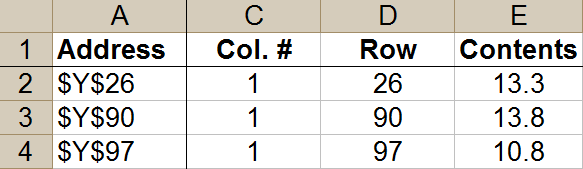
So at that point, I had achieved approximately what I had tried to do in at least one of the preceding posts.  Now there was the additional step of getting the 30 items pertaining to column A back into column A, leaving me with a table 100 columns wide but only 30 (not 3,000) rows deep.  To do this, I did go ahead and isolate out the column and row information into separate columns.  It was awkward to put the Excel column letters into proper order -- getting AA after Y, and so forth -- so I set up another column with numbers as substitute column indicators.  To do that, I did a unique data filter to get just a single representative from each column (e.g., AA, AB, ...), and then did a VLOOKUP to the appropriate number in a table built from that unique filter (e.g., Y = 1, Z = 2, AA = 3 ...).  This gave me a table which, after sorting, began like this:


I further modified this table by adding a Row # column after the existing Row column.  For this project, I didn't care what row the item came from in the original spreadsheet; I just cared that it was sorted in proper row order and that it would appear somewhere within rows 1-30 of my new table.  So the numbers in this new Row # column just ran from 1 to 30, matching the 30 items from a given column in the original spreadsheet (e.g., Y), and then they started over again at 1 and ran up to 30 for the next original column (e.g., Z), and so forth).  This was easy enough to arrange:  after setting up the first set of 1 to 30, the cells in all following rows could just refer to the value appearing 30 rows up.  So now I had set of 1, 2, 3 ... 30, appearing over and over again, all the way down my new Row # column.  I added a new NAddress column to express the combination of row and column: 


With that in place, I could do a lookup to complete the job.  This called for two tables.  The top left corners of those two tables looked like this:


Note the formulas shown for the top left data cell in each of these two tables.  The first table produced the thing that I would be looking for in my VLOOKUP; the second was the final data table.

I soon discovered that I should have included a VALUE formula in that final table's calculations; the resulting data were behaving like strings, not numbers, so I did have to do that additional transformation.  Otherwise, though, the data checked out OK, so this task was done.

Sunday, December 11, 2011

Moving Bookmarks to the Start Menu

I was using Firefox 7.0.1 in Windows 7.  I had created a customized Start Menu that contained not only the shortcuts to installed programs, but also the full contents of portable programs.  I had saved that Start Menu to a drive other than drive C, so that it would survive if I reinstalled or upgraded Windows.  So then my preferred arrangement of shortcuts and programs in my customized Start Menu would also survive.  I could also carry it around on a USB thumb drive and use it on other computers, at least for my portables and for those installed programs that they had installed in the same (default) locations on drive C.

In Firefox, I had a lot of bookmarks. (If I'd had them in Internet Explorer or some other browser, I probably could have imported them into Firefox.)  I wasn't really happy with my existing bookmark arrangement.  It occurred to me that I could incorporate the bookmarks into my custom Start Menu.  That way, my bookmarks would be portable too, and my web-based tools would be in the same place as my installed and portable tools.  Within the Start Menu, I could then sort the web links into subfolders.  For instance, the ones that had to do with multimedia could go into the Multimedia folder along with my image editing programs.  This would eliminate the task of coordinating bookmarks among various browsers.  Also, when I discovered a cool new bit of freeware that I didn't actually need right then, I wouldn't have to download and keep a copy that would eventually become outdated, or that I would forget what it did or why I had ever downloaded it in the first place.  Instead, I could just put into my Start Menu a link to the webpage that explained the program.

There would be some drawbacks as well.  It might be harder to detect duplicates in some cases.  Also, I might have to drill down through more levels of a Start Menu than of a Bookmarks folder to get where I wanted to go.  Still, since my existing approach to bookmarks did not work, I decided the advantages of a new approach would probably outweigh the disadvantages.

I didn't want to convert my bookmarks into a single HTML file.  As I had previously learned, such a file would have required constant updating and rearrangement, so as to put links in the desired order.  To clarify, the idea was taht I would save the bookmarks as individual links (shortcuts) that I could see in Windows Explorer.

To make that happen, I tried using the Bookmarks manager in Firefox (Bookmarks > Show All Bookmarks).  I found that I could cut and paste, or drag, individual bookmarks from the manager (or from the Bookmarks toolbar) to the Start Menu in Windows Explorer.  But if I tried to move multiple bookmarks at once, it didn't work.  The manager didn't give me an option of exporting bookmarks as individual link files.  There also didn't seem to be any way of bulk-handling Bookmark subfolders containing bookmarks.  I searched and saw various suggestions and requests involving other browsers, but as far as I could tell neither Chrome, Opera, nor Internet Explorer had an option to mass-export favorites or bookmarks as individual URL files.  A search of Firefox add-ons yielded nothing.

Some of my bookmarks were years old.  Before exporting them, whether in bulk or individually, I wanted to verify that the bookmarked website was still active.  To do this, I used the CheckPlaces add-on.  I had to go into the Firefox > Tools > Add-Ons menu to run it.  Within maybe five minutes, it concluded that I had 4,325 bookmarks; and of those, it said I had 1,395 duplicates.  This was not a surprise; my bookmarks folder was a screwed-up accumulation of years of repeated attempts at organization.  I told CheckPlaces to delete all duplicates.  For the other errors it found, I canceled out and went back to the CheckPlaces starting menu.  I changed Concurrency from 10 to 5, in case my relatively slow Internet connection was producing false errors in attempts to reach webpages.  I turned off "Load favicons" and ran it again.  Oddly, it still found 1,395 duplicates within 4,325 total bookmarks.  There wasn't a user's manual.  It turned out that I had to click the OK button to make the deletion permanent.  I did that, and then ran CheckPlaces again.  This time, it found only 1,711 bookmarks.  That didn't add up.  When I told it to delete duplicates, did that mean it deleted all copies of a duplicated bookmark?  Just then, Xmarks popped up and told me that my set of bookmarks on the computer was significantly smaller than my backup set on their server -- but they said I now had 1,866 bookmarks, not 1,711.  I decided to download the Xmarks backup and start over with CheckPlaces, this time paying closer attention to what it was deleting.  Spot checks suggested that it had done the sensible thing and deleted duplicates, but not all copies -- that is, if A and B matched, it looked like it deleted only one of them, not both.  So that was good.  The larger-than-expected number of deletions appeared to be due to the fact that I had three or more copies of some bookmarks.  Next, the CheckPlaces list of supposedly "Questionable" websites seemed to called for manual inspection: some were indeed duds, but others weren't. But then it looked like a webpage had to return a 301 error in order to get onto that list; and I found that a 301 error meant that the page had been moved but that there would typically be a forwarding address. So I ran the option, in CheckPlaces, to Fix All 301s.  Spot checks (and the age of many links) also suggested that I might just go ahead and delete the ones that CheckPlaces had identified as Failed for one reason or another.  I reran CheckPlaces a couple of times, deleting a few more duplicates and failed links.  In my final run, my original set of 4,325 bookmarks had shrunk to 1,322 -- still a lot, but more manageable.

So I had somewhat shrunk my list of bookmarks.  But I still had the main problem of getting them from Firefox to Windows Explorer.  How was I going to do that?  I thought of opening the bookmarks and then copying from the History manager instead, but in Firefox 8.0.1 that behaved the same as the Bookmark manager. Another possibility might have been to go ahead and export the bookmarks to an HTML file, one per bookmark folder; use Snap Links or Multi Links to open all of the links on that page; and then drag the icon from the Firefox address bar to the appropriate Windows Explorer folder, for each webpage that opened successfully.

But then I discovered that the Firefox bookmark manager (Bookmarks > Show All Bookmarks) would allow me to do the same thing more easily.  For the bookmarks that were in the Bookmarks Toolbar, I could select a bunch of links within a folder, right-click on them, and choose Open All in Tabs.  This way, I could see what was in those webpages, and decide if I really needed to save a link to them (using the same approach of dragging the link to Windows Explorer).  Then I could delete those that I had opened, and thereby gradually whittle down the accumulated mess that my Firefox bookmarks had become.  If I wanted to have a list of bookmarks in Firefox, I would still have the option of recreating it by opening and bookmarking a bunch of links from the Start Menu.

So I dragged all my bookmarks to the Bookmarks Toolbar and began opening them and manually dragging links to a single folder that I called "Unsorted Bookmarks," from where I would further sort them into various places in my Start Menu.  I decided that I would probably do a better job of this if I did it gradually, sorting just a few bookmarks at a time, paying careful attention rather than racing through it.  So I added a line to a batch file that was scheduled to run regularly on my computer.  That line would open a Windows Explorer session focused on that Unsorted Bookmarks folder, as a reminder to me.  So now, every day or week or however often I had scheduled that batch file, that Windows Explorer session would be one of the things that would start up, reminding me that it was time to examine another 10 or 20 bookmarks in Firefox.  At this point, then, it seemed that the project was pretty clearly in view, and it would just take a while to finish.

Wednesday, December 30, 2009

Sorting and Manipulating a Long Text List to Eliminate Some Files

In Windows XP, I made a listing of all of the files on a hard drive.  For that, I could have typed DIR *.* > OUTPUTFILE.TXT, but instead I used PrintFolders.  I selected the option for full pathnames, so each line in the file list was like this:  D:\FOLDER\SUBFOLDER\FILENAME.EXT, along with date and file size information.

I wanted to sort the lines in this file list alphabetically.  They already were sorted that way, but DIR and PrintFolders tended to insert blank lines and other lines (e.g., "=======" divider lines) that I didn't want in my final list.  The question was, how could I do that sort?  I tried the SORT command built into WinXP, but it seemed my list was too long.  I tried importing OUTPUTFILE.TXT into Excel, but it had more than 65,536 lines, so Excel couldn't handle it.  It gave me a "File not loaded completely" message.  I tried importing it into Microsoft Access, but it ended with this:

Import Text Wizard

Finished importing file 'D:\FOLDER\SUBFOLDER\OUTPUTFILE.TXT to table 'OUTPUTTXT'.  Not all of your data was successfully imported.  Error descriptions with associated row numbers of bad records can be found in the Microsoft Office Access table 'OUTPUTFILE.TXT'.

And then it turned out that it hadn't actually imported anything.  At this point, I didn't check the error log.  I looked for freeware file sorting utilities, but everything was shareware.  I was only planning to do this once, and didn't want to spend $30 for the privilege.  I did download and try one shareware program called Sort Text Lists Alphabetically Software (price $29.99), but it hung, probably because my text file had too many lines.  After 45 minutes or so, I killed it.

Eventually, I found I was able to do the sort very quickly using the SORT command in Ubuntu.  (I was running WinXP inside a VMware virtual machine on Ubuntu 9.04, so switching back and forth between the operating systems was just a matter of a click.)  The sort command I used was like this:
sort -b -d -f -i -o SORTEDFILE.TXT INPUTFILE.TXT
That worked.  I edited SORTEDFILE.TXT using Ubuntu's GEDIT program (like WinXP's Notepad).  For some reason, PrintFolders (or something) had inserted a lot of lines that did not match the expected pattern of D:\FOLDER\SUBFOLDER\FILENAME.EXT.  These may have been shortcuts or something.  Anyway, I removed them, so everything in SORTEDFILE.TXT matched the pattern.

Now I wanted to parse the lines.  My purpose in doing the file list and analysis was to see if I had any files that had the same names but different extensions.  I suspected, in particular, that I had converted some .doc and .jpg files to .pdf and had forgotten to zip or delete the original .doc and .jpg files.  So I wanted to get just the file names, without extensions, and line them up.  But how?  Access and Excel still couldn't handle the list.

This time around, I took a look at the Access error log mentioned in its error message (above).  The error, in every case, was "Field Truncation."  According to a Microsoft troubleshooting page, truncation was occurring because some of the lines in my text file contained more than 255 characters, which was the maximum Access could handle.  I tried importing into Access again, but this time I chose the Fixed Width option rather than Delimited.  It only went as far as 111 characters, so I just removed all delimiting lines in the Import Text Wizard and clicked Finish.  That didn't give me any errors, but it still truncated the lines.  Instead of File > Get External Data > Import, I tried Access's File > Open command.  Same result.

I probably could have worked through that problem in Access, but I had not planned to invest so much time in this project, and anyway I still wasn't sure how I was going to use Access to remove file extensions and folder paths so that I would just have filenames to compare.  I generally used Excel rather than Access for that kind of manipulation.  So I considered dividing up my text list into several smaller text files, each of which would be small enough for Excel to handle.  I'd probably have done that manually, by cutting and pasting, since I assumed that a file splitter program would give me files that Excel wouldn't recognize.  Also, to compare the file names in one subfile against the file names in another subfile would probably require some kind of lookup function.

That sounded like a mess, so instead I tried going at the problem from the other end.  I did another directory listing, this time looking only for PDFs.  I set the file filter to *.pdf in PrintFolders.  I still couldn't fit the result into Excel, so I did the Ubuntu SORT again, this time using a slightly more economical format:
sort -bdfio OUTPUTFILE.TXT INPUTFILE.TXT
This time, I belatedly noticed that PrintFolders and/or I had somehow introduced lots of duplicate lines, which would do much to explain why I had so many more files than I would have expected.  As advised, I used another Ubuntu command:
sort OUTPUTFILE.TXT | uniq -u
to remove duplicate lines.  But this did not seem to make any difference.  Regardless, after I had cleaned out the junk lines from OUTPUTFILE.TXT, it did all fit into Excel, with room to spare.  My import was giving me lots of #NAME? errors, because Excel was splitting rows in such a way that characters like "-" (which is supposed to be a mathematical operator) were the first characters in some rows, but were followed by letters rather than numbers, which did not compute.  (This would happen if e.g., the split came at the wrong place in a file named "TUESDAY--10AM.PDF."  So when running the Text Import Wizard, I had to designate each column as a Text column, not General.

I then used Excel text functions (e.g., MID and FIND) on each line, to isolate the filenames without pathnames or extensions.  I used Excel's text concatenations functions to work up a separate DIR command for each file I wanted to find.  In other words, I began with something like this:
D:\FOLDER\SUBFOLDER\FILENAME.EXT

and I ended with something like this:
DIR "FILE NAME."* /b/s/w >> OUTPUT.TXT

The quotes were necessary because some file names have spaces in them, which confuses the DIR command.  I forget what the /b and other options were about, but basically they made the output look the way I wanted.  The >> told the command to put the results in a file called OUTPUT.TXT.  If I had used just one > sign then that would have meant I wanted OUTPUT.TXT to be recreated every time a match was found.  Using two >> signs was an indication that OUTPUT.TXT should be created if it does not yet exist, but otherwise the results of the command should just be appended to whatever is already in OUTPUT.TXT.

In cooking up the final batch commands, I would have been helped by the MCONCAT function in the Morefunc add-in, but I didn't know about it yet.  I did use Morefunc's TEXTREVERSE function in this process, but I found that it would crash Excel when the string it was reversing was longer than 128 characters.  Following other advice, I used Excel's SUBSTITUTE command instead.

I took the thousands of resulting commands (such as the DIR FILENAME.* >> OUTPUT.TXT shown above), one for each file type (e.g., FILE NAME.*) that I was looking for, into a DOS batch file (i.e., a text file created in Notepad, with a .bat extension, saved in ANSI format) and ran it.  It began finding files (e.g., FILENAME.DOC, FILENAME.JPG) and listing them in OUTPUT.TXT.  Unfortunately, this thing was running very slowly.  Part of the slowness, I thought, was due to the generally slower performance of programs running inside a virtual machine.  So I thought I'd try my hand at creating an equivalent shell script in Ubuntu.  After several false starts, I settled on the FIND command.  I got some help from the Find page in O'Reilly's Linux Command Directory, but also found some useful tips in Pollock's Find tutorial.  It looked like I could recreate the DOS batch commands, like the example shown above, in this format:

find -name "FILE NAME.*" 2>/dev/null | tee -a found.txt

The "-name" part instructed FIND to find the name of the file.  There were three options for the > command, called a redirect:  1> would have sent the desired output to the null device (i.e., to nowhere, so that it would not be visible or saved anywhere), which was not what I wanted; 2> sent error messages (which I would get because the lost+found folder was producing them every time the FIND command tried to search that folder) to the null device instead; and &> would have sent both the standard output and the error messages to the same place, whatever I designated.  Then the pipe ("|") said to send everything else (i.e., the standard output) to TEE.  TEE would T the standard output; that is, it would send it to two places, namely, to the screen (so that I could see what was happening) and also to a file called found.txt.  The -a option served the same function as the DOS >> redirection, which is also available in Ubuntu's BASH script language, which is what I was using here:  that is, -a appended the desired output to the already existing found.txt, or created it if it was not yet existing.  I generated all of these commands in Excel - one for each FILE NAME.* - and saved them to a Notepad file, as before.  Then, in Ubuntu, I made the script executable by typing "chmod +x " at the BASH prompt and then ran it by typing "./" and it ran.  And the trouble proved to be worthwhile:  instead of needing a month to complete the job (which was what I had calculated for the snail's-pace search underway in the WinXP virtual machine), it looked like it could be done in a few hours.

And so it was.  I actually ran it on two different partitions, to be sure I had caught all duplicates.  Being cautious, I had the two partitions' results output to two separate .txt files, and then I merged them with the concatenation command:  "cat *.txt > full.lst."  (I used a different extension because I wasn't sure whether cat would try to combine the output file back into itself.  I think I've had problems with that in DOS.)  Then I renamed full.lst to be Found.txt, and made a backup copy of it.

I wanted to save the commands and text files I had accumulated so far, until I knew I wouldn't need them anymore, so I zipped them using the right-click context menu in Nautilus.  It didn't give me an option to simultaneously combine and delete the originals.


Next, I needed to remove duplicate lines from Found.txt.  I now understood that the command I had used earlier (above) had failed to specify where the output should go.  So I tried again:

sort Found.txt | uniq -u >> Sorted.txt

This produced a dramatically shorter file - 1/6 the size of Found.txt.  Had there really been that many duplicates?  I wanted to try sorting again, this time by filename.  But, of course, the entries in Sorted.txt included both folder and file names, like this:

./FOLDER1/File1.pdf
./SomeotherFolder/AAAA.doc
Sorting normally would put them in the order shown, but sorting by their ending letters would put the .doc files before the .pdfs, and would also alphabetize the .doc files by filename before foldername.  Sorting them in this way would show me how many copies of a given file there had been, so that I could eyeball the possibility that the ultimate list of unique files would really be so much shorter than reported in Found.txt.  I didn't know how to do that in bash, so I posted a question on it.


Meanwhile, I found that the output of the whole Found.txt file would fit into Excel.  When I sorted it, I found that each line was duplicated - but only once.  So plainly I had done something wrong in arriving at Sorted.txt.  From this point, I basically did the rest of the project in Excel, though it belatedly appeared that there were some workable answers in response to my post.